Management
The “Management” tab is available immediately after launching the program: it allows you to control proxy collection and configure each stage.
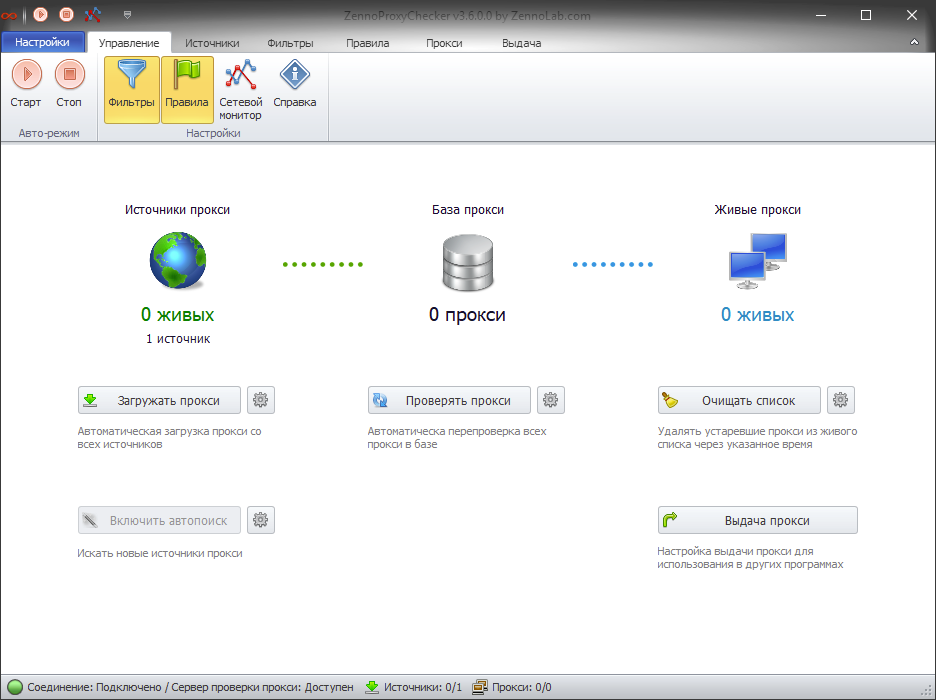
Control Panel
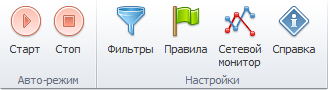
- Start/Stop — use these buttons to start or stop proxy collection and checking.
- Filters — a set of rules applied to proxies before they are added to the program database after being loaded from a source. You can read more in the article Filters.
- Rules — a set of conditions that allow you to take proxies from the live list. Learn more in the article Rules.
- Network Monitor — this built-in utility lets you test your internet connection for the maximum number of simultaneous threads.
- Help — opens the documentation in your browser.
Proxy Sources
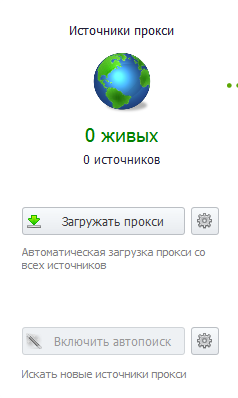
Here you configure proxy loading from sources.
When you click in the area displaying the number of sources, you will be redirected to Sources.
Number of Sources
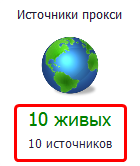
The lower number shows the total number of sources saved in the database.
The upper number shows the number of active sources.
Load Proxies
Clicking this button starts collecting proxies from sources.
Thread Count Settings
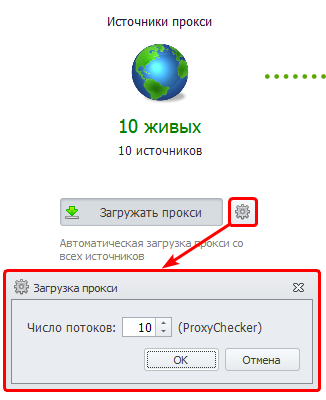
You can adjust how many threads will be used to load proxies from sources by clicking the gear icon.
Enable Auto Search
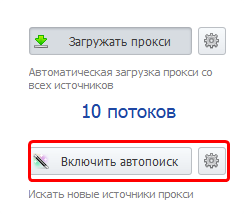
The button is active only when proxy loading is enabled.
When this option is activated, ProxyChecker will automatically search the internet for proxy sources.
After clicking the gear icon, the source settings that will be applied to the found websites will open (you can read more about these settings in this article).
In the program settings, you can set limits at which auto search will stop.
Proxy Database
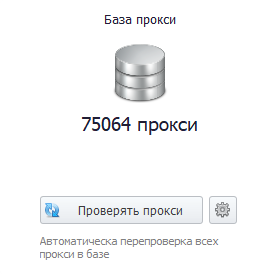
Here you start the actual proxy checking process. When you click in the area displaying the number of proxies, you will be redirected to Sources.
Check Proxies
This button starts the checking process.
Settings
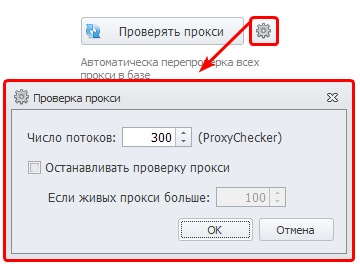
Clicking the gear button opens the checking settings.
Here you can set the number of checking threads and the limit for the number of live proxies, upon reaching which the checking will stop.
Live Proxies
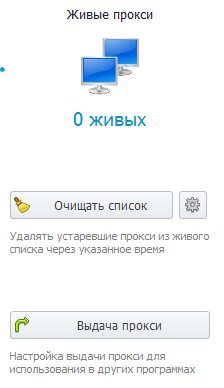
Here you can see the number of live proxies and configure the time during which a proxy is considered live. When you click in the area displaying the number of live proxies, you will be redirected to Proxy.
Clear List
When activated, the live list will be cleared according to the configured lifetime of a live proxy.
Lifetime
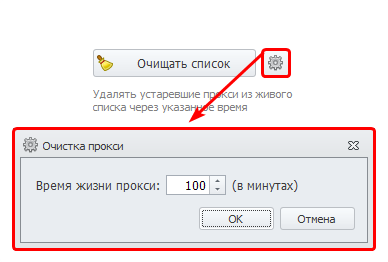
Clicking the gear icon opens a settings window where you specify how long a proxy is considered live.
Proxy Output
Go to the proxy output tab.